Check the file’s pixel ratio and the paper’s orientation
Before choosing a print size, check the width and height of the image file in pixels. This example assumes one landscape photograph measuring 3000 pixels wide by 2000 pixels high. Dividing both numbers by 1000 gives 3:2. A cropped copy of the same scene may have a different ratio, so inspect the file you will actually order.
Read the paper dimensions in the same orientation. Here, a landscape 4×6-inch print means 6 inches wide by 4 inches high, while a landscape 5×7 means 7 inches wide by 5 inches high. The ratio 6:4 simplifies to 3:2; 7:5 does not. Pixels and inches are different units, so their numbers do not need to match.
Why a 3:2 photograph fits a landscape 6×4-inch rectangle
Scale the 3000-by-2000-pixel photograph proportionally into a rectangle 6 inches wide and 4 inches high, and both dimensions fit together. The full image and the paper have the same proportions. In ideal geometry, there is no cropping or blank space caused by an aspect-ratio mismatch.
This does not mean every phone takes 3:2 originals. A photograph may be 4:3, another ratio, or cropped after capture. Even a 3:2 file can lose a small amount at the edges if a print service allows for trimming. Check the actual print preview separately from the calculation showing that the ratios match.
Calculate fit and fill on paper 7 inches wide by 5 high
To fit the whole image on 7×5-inch paper, set its width to 7 inches. Its height becomes 7 × 2 ÷ 3 = 4⅔ inches. That leaves ⅓ inch of the paper’s height. Centering the image divides this into ⅙ inch of blank space at the top and ⅙ inch at the bottom. This ideal calculation leaves no space at the left or right.
To fill the paper, scale the image’s height to 5 inches. Its width becomes 5 × 3 ÷ 2 = 7.5 inches. The image extends 0.5 inch beyond the paper’s 7-inch width. A centered crop removes ¼ inch from the left and ¼ inch from the right of that scaled image. Notice that the blank space for fit and the crop for fill run in different directions.
Four steps to make the choice in the print preview
Check the pixel width and height of the file you will order, along with the actual paper dimensions and orientation.
Identify any people, objects, or text at the edges that must remain. Decide whether keeping the whole image or filling the paper matters more.
In the print service’s preview, compare the whole-image and fill options, checking all four edges and the blank areas yourself.
Read the trimming guidance and resolution warnings. Select the option that keeps what matters, then inspect the preview again before ordering.
A fictional choice that keeps a handle near the edge
For an original fictional example, imagine a landscape cup photograph measuring 3000 by 2000 pixels, with the handle close to the right edge. If the fill preview for paper 7 inches wide by 5 inches high cuts off part of the handle, decide whether keeping it whole is central to your purpose. In this example, preserving the full image matters most, so choose fit and accept blank space above and below.
If everything you need is near the center and you want the paper covered, fill may suit your choice. A centered crop is only the calculation used here; the result can change if the service lets you move the image. The final note for this example is “Landscape 7×5 inches, fit whole image, keep right-hand handle, check top and bottom space.”
Separate the geometry from trimming, resolution, and the actual preview
The fractions and inch measurements above assume ideal rectangles, proportional scaling, and centering. Border options, trimming allowances, and preview labels vary by print service. An option to show the whole image is not necessarily the same as adding a border. Look at both the image area and the edges of the paper.
Matching the ratio does not establish whether a file is sharp enough for the print. Check whether a saved copy has been reduced and read the service’s resolution guidance and warnings. These calculations do not guarantee print quality or the result of an order. Base the choice on the actual file and product preview rather than numbers copied from a screenshot.
Keep the original and a note about the print choice
Keep the original separate from any file prepared for printing or note of settings you chose. In Pogaem, you can save a selected photograph and write “7 inches wide by 5 high, keep whole image, preserve handle” on the date you make the note. If the planned print date differs from the date the picture was taken, mention both in the body.
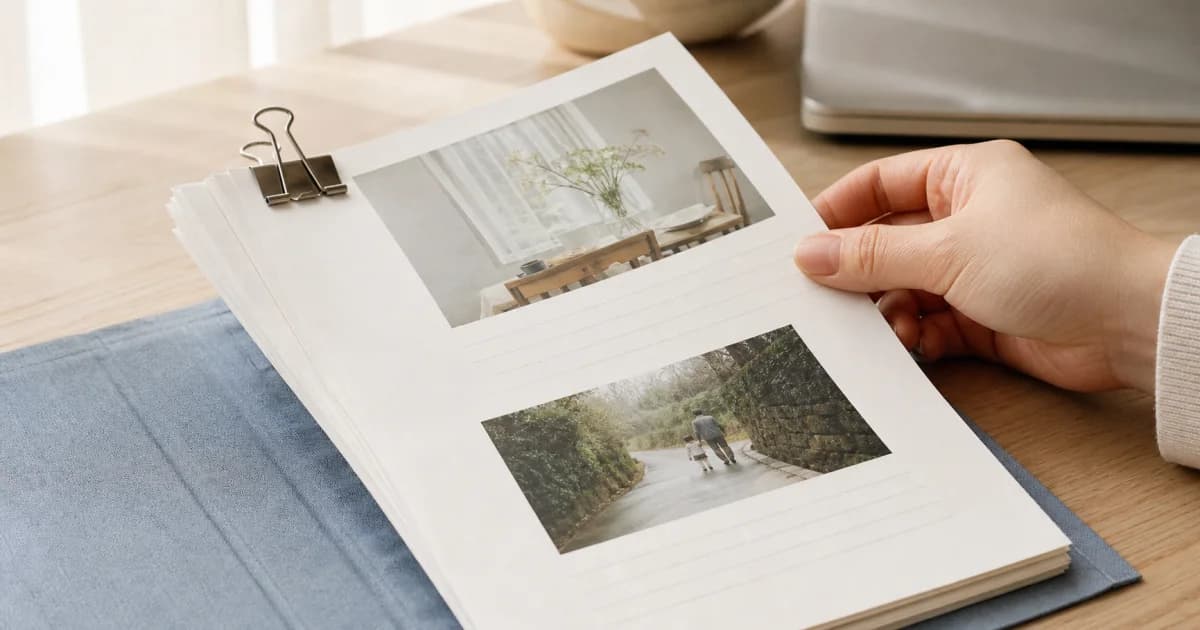
Check precise crop editing and ordering in the separate tool or print service you intend to use. This article does not describe Pogaem editing an image to a paper size or placing a print order. The cover’s packet of photographs is a contextual illustration; it does not show the fictional cup photograph or objects measured at exactly 6×4 or 7×5 inches.
Frequently asked questions
Are all smartphone photographs 3:2?
No. They may be 4:3 or another ratio, and a cropped file can differ from its original. Here, 3:2 is the ratio of the example file measuring 3000 pixels wide by 2000 pixels high.
Does choosing white space create an equal border on all four sides?
Not always. Centering a whole 3:2 landscape image on an ideal 7×5-inch rectangle leaves ⅙ inch only at the top and bottom. Check separate border options and actual trimming in the service’s preview.
Can I order a print or edit a precise crop in Pogaem?
Crop editing and ordering in this walkthrough happen in a separate tool or print service. Pogaem can hold a photograph you select and your own notes about the print size and choice.