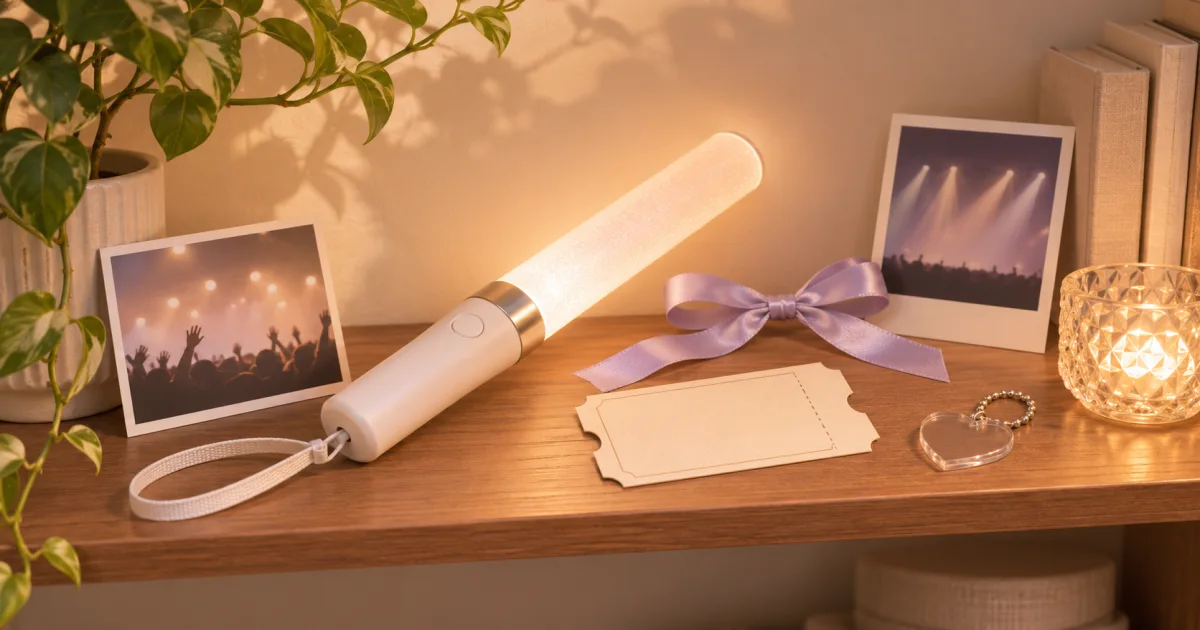
Make two layouts with your own items
Choose the merch you can place on a shelf, arrange it once and take a photo. Change the order or positions and photograph it again from a similar distance to see which arrangement you prefer.
If the shelf is small, you can swap just two items. Before each photo, check for visible addresses or someone else’s photo.
Add three details to each photo
Label the photos A and B, add the arrangement date and note what moved. Separately write which layout you prefer and why.
Separating position changes from preferences makes the notes easier to use later. “Moved from left to right” is an observation; “I like having it within reach” is a preference.
A fictional A and B
“A: the light stick is on the left, a small card holder on the right. B: I swapped them. Choice: I like B because the holder I reach for often is closer.” This is a fictional entry.
If you add something later, do not insert it into the original A/B comparison. Take another photo on the new date and note what was added so it is clear what you chose before.
When photographing and sharing
Place items securely and photograph them somewhere they will not obstruct anyone. Check whether another person’s face or private information appears before sharing.
Concert photos or cards may be someone else’s copyrighted work. Check the rights and scope of permitted sharing before posting publicly.
Find the arrangement again in Pogaem
On the date you took them, save the A and B photos together with your reason for choosing one. Pogaem does not compare photos automatically, so review the pictures and notes yourself. For a shared calendar, check participation permissions and your internet connection.
Frequently asked questions
Can I do this with only a few items?
Yes. Swapping the positions of two items is enough to record different arrangements.
Can the two photos be taken from different angles?
Yes, though taking them from a similar distance makes position changes easier to see.
Will the app choose the better layout?
No. You choose by looking at your own photos and notes.